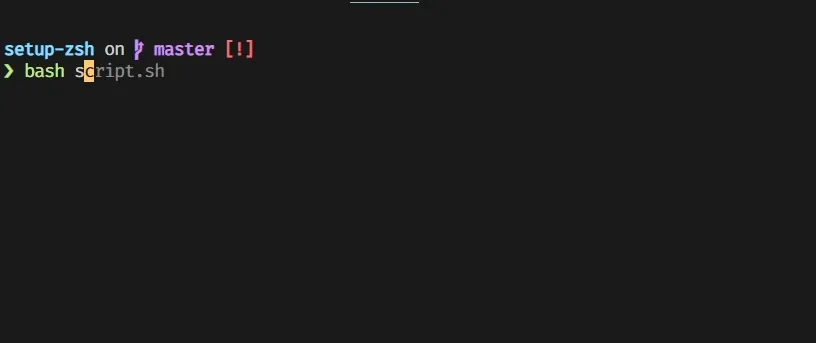
Setup guide for ZSH in GitHub codespaces
Last Updates at
zsh github codespaces starship terminal
Setup ZSH
This post will guide you through to set up starship along with zsh suggestions and zsh syntax highlight for your codespaces.
Table of Contents
Setup Starship
This is an optional package if you want to beautify your terminal. Else you can also use any other ZSH themes.
Install starship
You cannot install starship in ZSH shell at the time of writing this. You can switch to bash.
curl -sS https://starship.rs/install.sh | shSetup the config in the ZSH file
echo "eval \"\$(starship init zsh)\"" >> ${ZSOTDIR:-$HOME}/.zshrcInstall ZSH Auto Suggestions
- Clone the repository
git clone https://github.com/zsh-users/zsh-autosuggestions ~/.zsh/zsh-autosuggestionsYou can change the path to anything you want. Here we use
~/.zsh/zsh-autosuggestions
- Add the invoke script to the ZSH config
echo "source ~/.zsh/zsh-autosuggestions/zsh-autosuggestions.zsh" >> ${ZSOTDIR:-$HOME}/.zshrcInstall ZSH Syntax Highlighting
- Clone the repository
git clone https://github.com/zsh-users/zsh-syntax-highlighting.git ~/.zsh/zsh-syntax-highlighting- Add the invoke script to the ZSH config
echo "source ~/.zsh/zsh-syntax-highlighting/zsh-syntax-highlighting.zsh" >> ${ZDOTDIR:-$HOME}/.zshrcNote: If you see a Systemd in the terminal and want to remove it then follow the next command
mkdir -p ~/.config && printf "[container]\ndisabled = true" >> ~/.config/starship.tomlVoila! You are ready to use ZSH with Starship and ZSH Auto Suggestions and Syntax Highlighting.
If you like it consider following me on github